Adding Hydrix to Trust Wallet
Trust Wallet is a popular mobile wallet available on both iOS and Android. Follow these steps to add Hydrix Chain to your Trust Wallet.
Network Information
Before you begin, here are the network details you'll need:
| Field | Value |
|---|---|
| Network Name | Hydrix Testnet |
| RPC URL | https://chainfree.info:5010/validator/1 |
| Chain ID | 1337 |
| Currency Symbol | HYX |
| Block Explorer | https://www.hydrix.online |
If you experience connection issues, you can also use:
When adding Hydrix Testnet, Trust Wallet may display warnings about unrecognized networks or security notices. This is common with new chains and testnets. You can safely ignore these warnings and proceed with adding the network. Trust Wallet shows these alerts for any custom network that isn't in their official registry.
Step-by-Step Guide
Step 1: Open Trust Wallet
Launch the Trust Wallet app on your mobile device (iOS or Android).
This guide works for both iOS and Android. The interface is identical on both platforms.
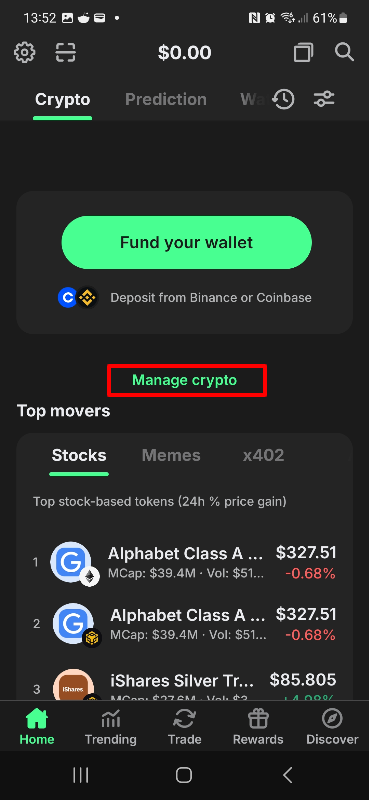
Step 2: Access Manage Crypto
On the homepage, scroll down and tap "Manage Crypto".
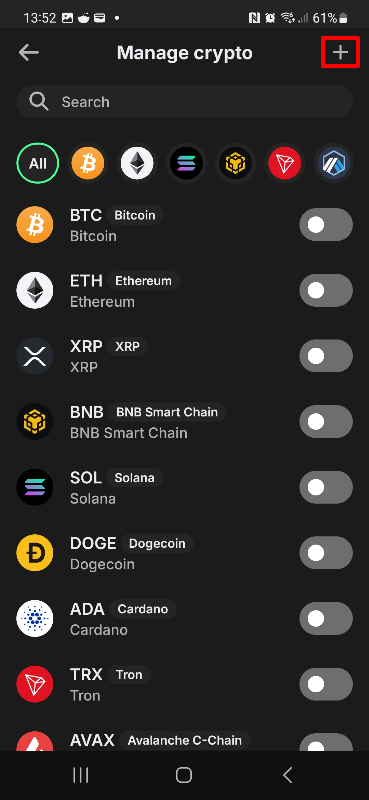
Step 3: Add Network
Tap the "+" (plus) button at the top right corner of the screen.
Step 4: Select Network Tab
Ensure the "Network" tab is highlighted at the top of the screen (not Token or NFT).
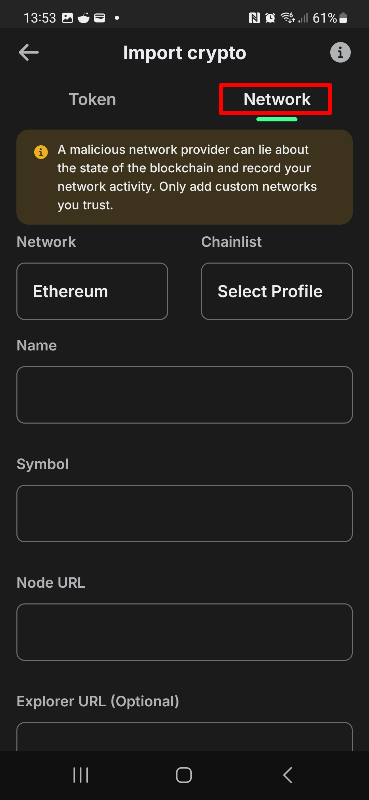
Step 5: Enter Network Details
Fill in the network information form with the following Hydrix Chain details:
Network Name
Hydrix Testnet
NODE URL
https://chainfree.info:5010/validator/1
Symbol
HYX
Block Explorer URL (Optional)
https://www.hydrix.online
- Copy and paste the RPC URL exactly as shown to avoid connection errors
- Make sure there are no extra spaces
- Chain ID should be entered as the number 1337
Step 6: Import Network
Tap "Import" to add the Hydrix network to your Trust Wallet.
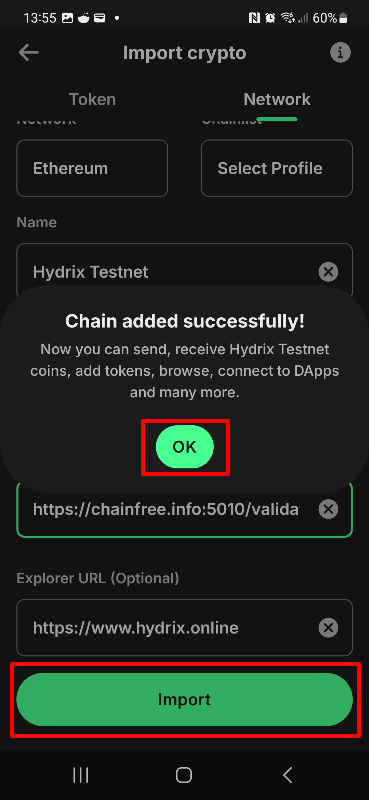
A modal will appear saying "Success". Tap "OK" to confirm
Step 8: Enjoy Hydrix Testnet
Hydrix Chain will now show on your screen. You should see it in your crypto list and can tap on it to view your HYX balance and transaction history.
You're now connected to Hydrix Chain on Trust Wallet! Your HYX balance should appear shortly as the wallet syncs with the network.
Troubleshooting
Cannot Find "Manage Crypto"
If you don't see "Manage Crypto" on your homepage:
- Update Trust Wallet - Make sure you have the latest version from App Store/Play Store
- Check homepage - It should be visible when you scroll down on the main wallet screen
- Look for similar options - Some versions may call it "Manage" or "Manage Tokens"
Cannot Connect to Network
If you're unable to connect to Hydrix Chain:
- Verify RPC URL - Make sure it's exactly:
https://chainfree.info:5010/validator/1 - Test internet connection - Ensure you have a stable WiFi or mobile data connection3
- Try alternative RPC - Use validator/2, validator/3, or validator/4
- Remove and re-add - Delete the network and add it again from scratch
Network Not Importing
If the network won't import:
- Check RPC URL format - Must start with
https:// - Verify Chain ID - Enter
1337as a number, not text - Remove spaces - Make sure there are no extra spaces in any field
- Ensure Network tab selected - Make sure you're on the "Network" tab, not "Token"
- Try again - Sometimes it takes 2-3 attempts
- Restart app - Close and reopen Trust Wallet
Hydrix Not Appearing After Import
If Hydrix doesn't show up after importing:
- Check Manage Crypto - Go back to Manage Crypto to verify it's there
- Refresh wallet - Pull down to refresh on the main screen
- Restart app - Close Trust Wallet completely and reopen
- Check network status - Visit hydrix.online to verify the network is running
Balance Not Showing
If your HYX balance doesn't appear:
- Wait 30-60 seconds - The wallet needs time to sync
- Pull to refresh - Swipe down on the main screen to refresh
- Check explorer - Verify your balance at hydrix.online
- Tap on Hydrix - Sometimes you need to open the network to trigger sync
- Restart app - Close Trust Wallet completely and reopen it
Transaction Failing
If your transactions are failing:
- Check HYX balance - Ensure you have enough for gas fees
- Verify network - Make sure you're on Hydrix Testnet
- Increase gas - Try setting a higher gas price
- Wait and retry - Network might be experiencing congestion
- Check network status - Visit hydrix.online
App Crashing or Freezing
If Trust Wallet crashes when adding the network:
- Update Trust Wallet - Make sure you have the latest version from App Store/Play Store
- Restart device - Sometimes a device restart helps
- Clear cache - Go to Settings → Preferences → Clear Cache (if available)
- Reinstall app - Only do this if you have your seed phrase backed up!
- Contact support - Reach out to Trust Wallet support or our Discord
Receiving HYX Tokens
To receive HYX tokens:
- Tap on Hydrix Testnet in your wallet
- Tap "Receive"
- Share your Hydrix address (it starts with "0x...")
- You can copy the address or share the QR code
Your Hydrix address is the same as your Ethereum address. Trust Wallet uses the same address across all EVM-compatible chains.
Sending HYX Tokens
To send HYX tokens:
- Tap on Hydrix Testnet in your wallet
- Tap "Send"
- Enter the recipient's address or scan their QR code
- Enter the amount of HYX to send
- Review the transaction details and gas fee
- Tap "Send" to confirm
Mobile-Specific Tips
For iOS Users:
- Face ID/Touch ID: Enable biometric authentication in Settings → Security
- Notifications: Turn on notifications to get alerts for transactions
- Backup: Make sure to backup your recovery phrase in Settings → Wallets
- Widget: Add Trust Wallet widget to your home screen for quick balance checks
For Android Users:
- Fingerprint: Enable fingerprint unlock in Settings → Security
- App Shortcuts: Long-press the Trust Wallet icon for quick actions
- Battery Optimization: Exclude Trust Wallet from battery optimization for better performance
- Notifications: Enable notifications for transaction alerts
Need More Help?
- Documentation: Visit our full documentation at Hydrix Docs
- Block Explorer: Check your transactions at hydrix.online
- Discord: Join our community for live support
- Email: Contact support@hydrix.tech
Next Steps
Now that you've added Hydrix to Trust Wallet, you can:
- Send and receive HYX - Start making transactions
- Explore DApps - Use Trust Wallet's DApp browser to connect to Hydrix applications
- Check transactions - Visit hydrix.online to view network activity
- Join the community - Connect with other Hydrix users on Discord
Looking for MetaMask setup? Check out: